Quick answer
A new employee needs more than a laptop that turns on. They need the right account, approved software, access to the correct files, a working desk setup, and someone to contact when a problem appears. Prepare those as one small project with an owner and a checklist. Test the employee's actual tasks before calling the setup complete.
This guide is for a small office planning ordinary device installation and onboarding. It is not a substitute for managed IT, incident response, or the security requirements of regulated work. If an IT provider already manages your business, coordinate with them before changing equipment or accounts. Taskburgh can help with agreed hands-on device setup and practical workstation tasks while your business keeps control of its systems.
Start with the job, then choose the equipment
Write down what the person will do on an ordinary day. A receptionist who prints forms, a designer working with large files, and a team member who spends the day in video meetings may need different setups. The useful list names applications, file locations, peripheral devices, and where the work happens. “Needs a good computer” is not a specification.
Include tasks that happen only occasionally: scanning a multipage document, presenting in a meeting room, signing into a supplier portal, or working from home. These often reveal compatibility issues that a basic desktop check misses. Ask the person who already performs the role to demonstrate a harmless sample of the workflow.
Then separate what must work on day one from what can wait. Email, required business software, and access to current work usually matter sooner than a second optional display. Priorities make it possible to complete a useful setup even when one accessory or license has not arrived.
Make a short equipment and ownership record
Assign each business device a clear name and record its model, serial number, assigned user, and location. Include the charger, dock, headset, and other accessories issued with it. Save purchase and warranty records where the business owner can find them. A spreadsheet can be enough for a small team if someone is responsible for keeping it current.
Distinguish business-owned equipment from personal equipment. Do not enroll a personal laptop into a management system or erase a used device without explicit approval and a clear understanding of what will happen. A practical setup visit should not make ownership decisions by accident.
The record does not need to contain passwords. Note who administers an account and how authorized recovery is handled; keep secrets in the business's approved password system. This makes later changes easier without turning the inventory into a list of sensitive credentials.
Prepare accounts before the employee arrives
The business owner or authorized administrator should decide what access the role requires. Create individual accounts through the normal business process. Reusing a former employee's login may appear convenient, but it makes ownership and future access changes harder to understand. Shared resources should be shared through the application features intended for that purpose.
Arrange multifactor authentication and recovery with the actual user. A helper's phone number should not become the only recovery route for the business. If setup requires the owner to approve a sign-in, book that time rather than asking the technician to improvise around the approval screen.
Keep ordinary work permissions separate from administration. The employee should have what the role needs; someone authorized should retain responsibility for changes affecting the whole organization. NIST's small-business quick-start guide provides a broader way to plan cybersecurity responsibilities and risks. Device installation is one part of that work, not proof that the business has completed it.
Set up the desk as a working system
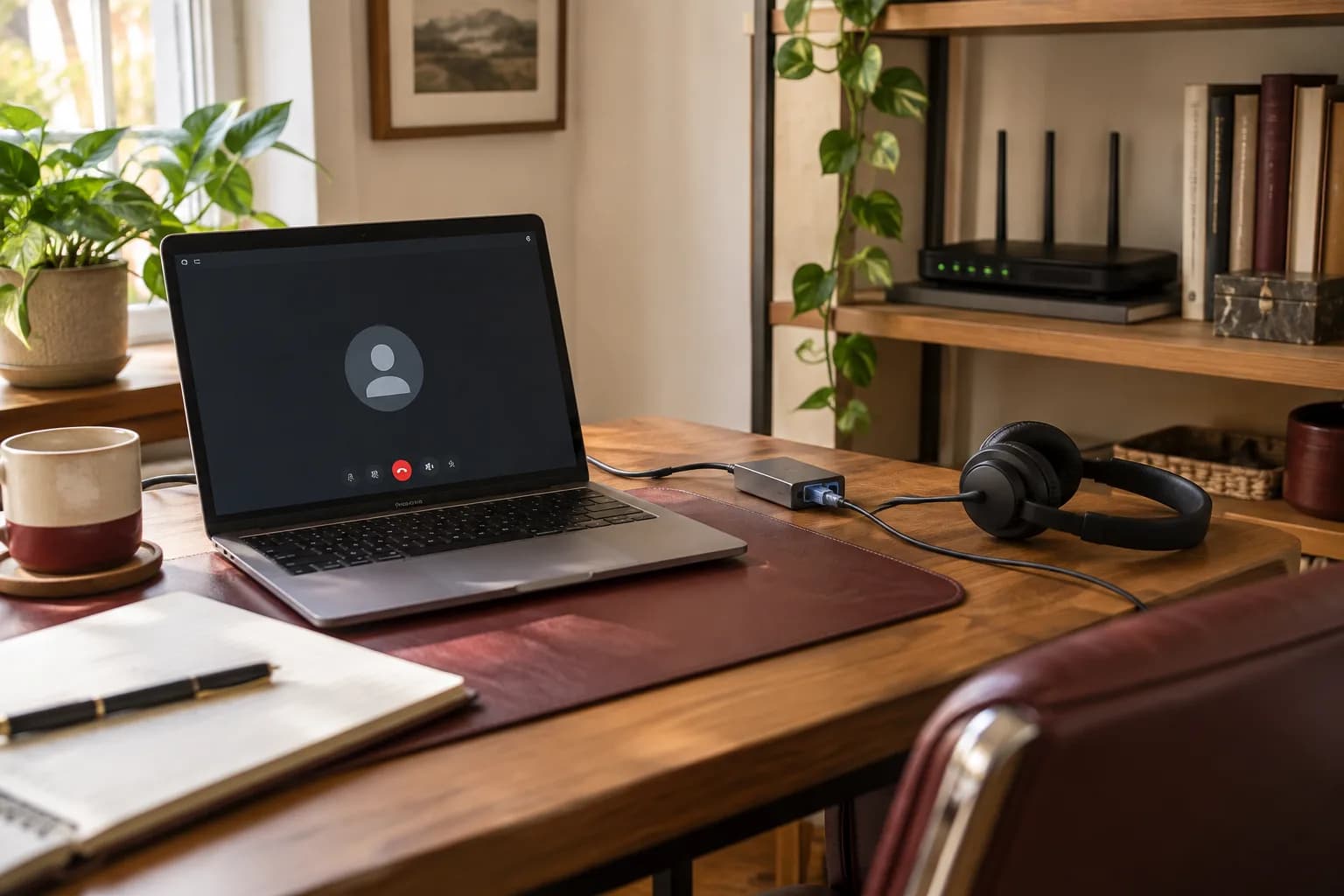
Place the computer, displays, keyboard, mouse, headset, and dock before hiding the cables. Check whether the desk supports any monitor-arm clamp and whether the dock supports the particular laptop and display arrangement. The shape of a USB-C connector alone does not establish every capability of the port, cable, or dock; use the manufacturers' specifications for the actual models.
Test display resolution, wake from sleep, charging, audio input, and camera selection. A desk can look finished while the microphone is still coming from a laptop across the room or the dock fails to wake an external screen. These are easier to identify before cables are bundled beneath the desktop.
Leave enough cable movement for a height-adjustable desk and keep walkways clear. Do not overload outlets or modify building wiring as part of cable cleanup. If the room needs additional power infrastructure, arrange a qualified electrician separately. Our home-office desk setup guide covers the physical planning in more detail.
Install only the software the role needs
Use official publishers and the organization's approved installation method. Check that the business owns the necessary licenses and that subscriptions are associated with the right account. Avoid downloading a bundle of “optimization” tools merely because the machine is new.
Complete updates in a planned window with the computer connected to power. Record any restart still required. For an employer-managed device, follow the management provider's process rather than changing update or security settings independently. If a required application is incompatible, report the exact issue before replacing it with an unapproved alternative.
Set the default browser, document applications, and save locations deliberately. A new user should know where a document goes when they click Save. Opening a recent file successfully does not prove that the next file will be stored in a location the business can recover or share.
Test printing, scanning, and shared resources separately
A printer appearing in a device list is not a complete test. Print a non-sensitive sample from the application the employee actually uses. Check paper size, orientation, two-sided output if required, and the destination printer. For a shared office, name queues clearly enough that people will not send a confidential document to the wrong room.
Scanning deserves its own test: capture a page, save it to the intended location, reopen it, and confirm who can access it. A device may print successfully while its scan software or destination is not configured. Microsoft's printer troubleshooting guide is a useful starting point for connection and queue problems; use the manufacturer for model-specific scanning features.
Check shared folders with the new user's account, not the administrator's. Use a harmless test file to verify the actions the role needs, such as reading, editing, and saving. If access is missing, have the authorized administrator grant the appropriate permission instead of distributing an administrator password.
Verify recovery before retiring an old workstation
If the employee is replacing a computer, list the data that needs to move and identify who owns it. Confirm the backup and open representative files on the new machine. Cloud synchronization, a copied folder, and an independently recoverable backup are different things; make sure the person responsible understands the chosen arrangement.
Keep the old device available until the new setup has completed the necessary work and the owner approves retirement. Do not erase a computer because a transfer progress bar reached the end. Local application data, bookmarks, and an old mailbox can be easy to miss.
For a practical migration sequence, use our new computer setup guide. If the business cannot identify where critical records are stored, that is a planning issue to resolve before a cleanup or replacement visit.
Use a first-day acceptance checklist
Ask the employee to perform a short version of a normal workday:
- Sign in using their own account and approved authentication method.
- Open the required business applications.
- Find, edit, and save a harmless file in the right location.
- Send and receive a test message.
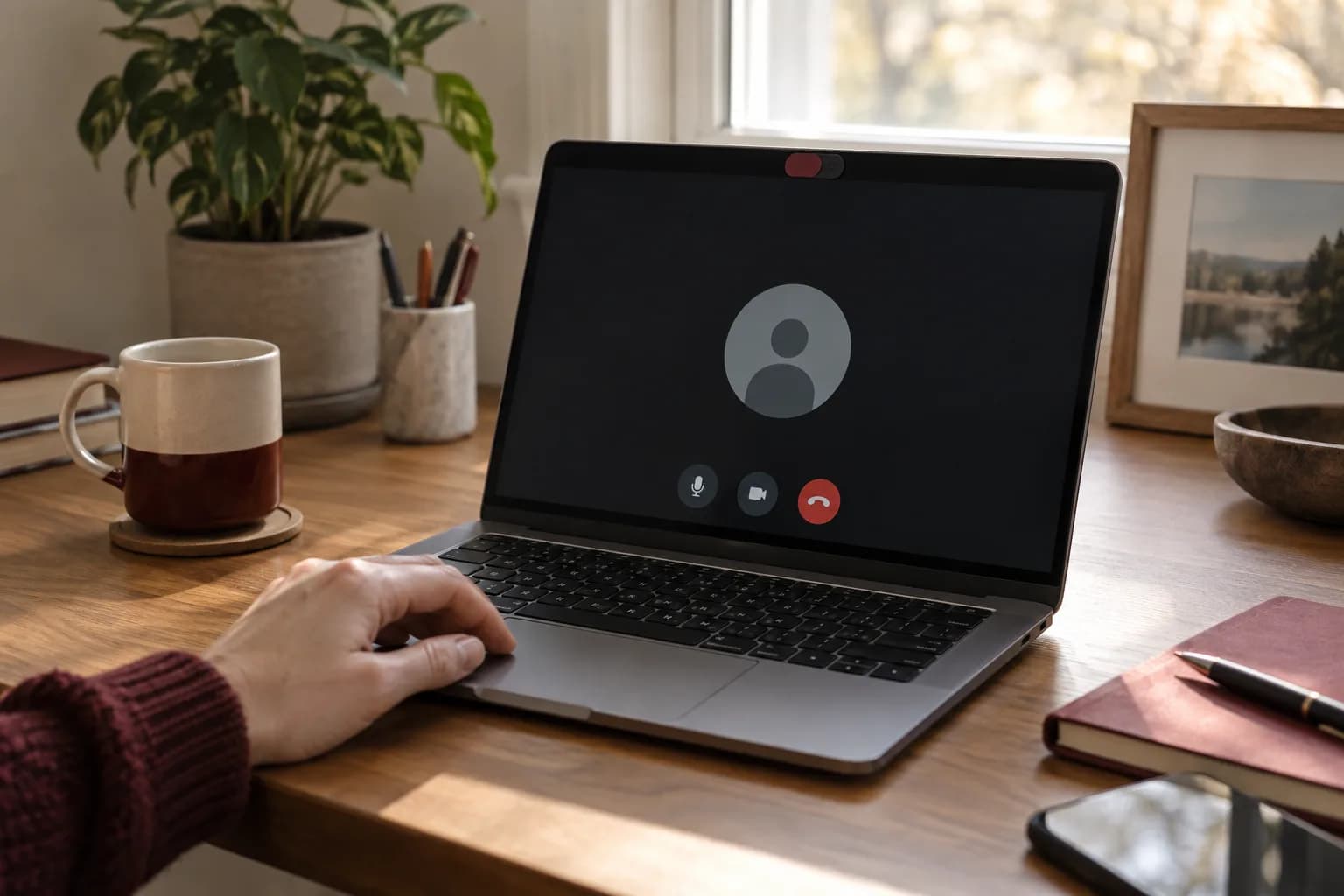
- Join a test meeting with the intended camera and headset.
- Print and scan the sample documents the role requires.
- Disconnect and reconnect the dock if the laptop will travel.
- Identify the support contact and where setup notes are stored.
Record exceptions clearly. “Scanner waiting for administrator-approved destination” is more useful than “mostly done.” Assign an owner and next step to each unfinished item so it does not become the new employee's unexplained problem.
Plan offboarding while onboarding is still fresh
The same equipment record should support a later role change or departure. Know who can revoke access, recover business files, collect devices, and reassign licenses. Follow the business's retention and privacy requirements; do not casually delete accounts or copy personal material during a device handover.
An occasional setup provider and an ongoing IT provider have different responsibilities. NIST's guide to building a cybersecurity team can help a small business think through that distinction. Ask who will maintain the systems after the installation appointment ends.
Arrange a focused office setup visit
Send the number and models of devices, the tasks that must work, your existing IT contact if applicable, and the available setup window when you request an estimate. Do not send passwords or customer records with the request. Taskburgh can discuss workstation assembly, device installation, peripherals, and everyday technical setup, with responsibilities and exclusions agreed before the visit. Browse our service catalog to see the available home and office technology categories.