Quick answer
Plan an SSD upgrade around the computer's exact supported storage connection, the files and applications you need to keep, and the reason you need more storage. Buying a drive is only one part of the job. Decide whether the new drive will replace the system drive, provide additional internal space, or work as external storage. Then agree on migration, owner access, testing, and what happens to the original drive.
This guide starts after the broad decision to consider an upgrade. If the computer has several problems or you are unsure whether storage is responsible, begin with our repair, upgrade, or replace guide. A new SSD should solve a defined storage problem, not serve as a guess at every slowdown.
Name the problem before choosing capacity
Write down what happens during normal use. Is the computer reporting insufficient space? Are you repeatedly deleting downloads to save a project? Do large local files take too long to open, or is the delay actually waiting for an online application? These are different starting points.
List the work you want the upgrade to support. A household photo collection, locally installed games, video projects, and ordinary documents have different storage patterns. Check current use in the operating system and identify the largest legitimate categories before shopping. Do not delete unfamiliar system folders to make the numbers look better.
Also distinguish permanent material from temporary downloads. Keep useful working room for updates and new projects, but do not invent a universal percentage that guarantees performance. Compare available capacities against your actual collection, expected additions, and the device manufacturer's supported options. A larger drive is useful only if it fits both the machine and the plan.
Confirm more than the connector's appearance
Find the computer's exact model and, for a custom desktop, the motherboard model. Use the relevant service documentation to establish whether storage is replaceable, what slots are available, and which drive types are supported. A product family's marketing name may cover several internal configurations.
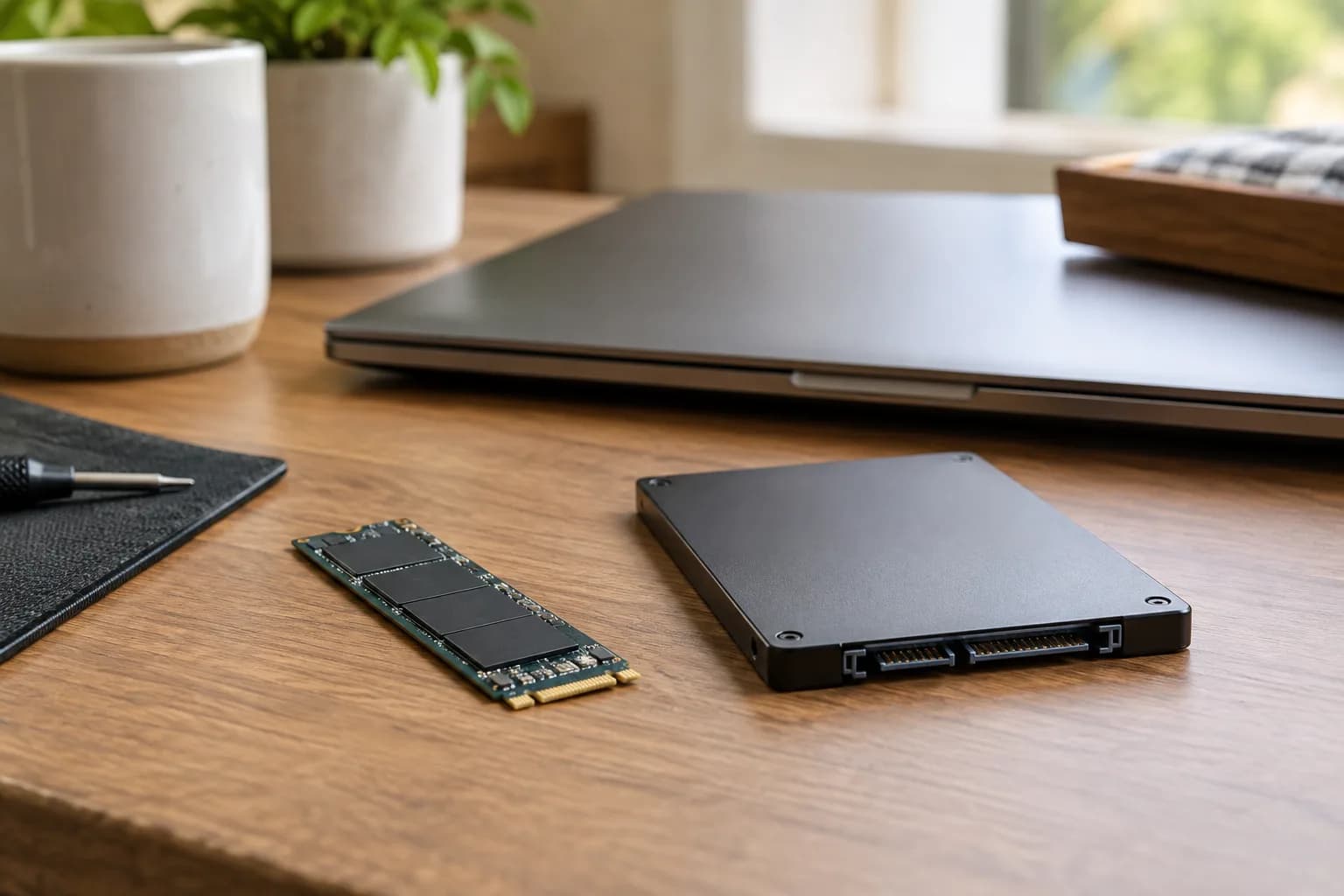
Kingston explains SSD form factors as physical shapes and sizes, distinct from the interface used to communicate with the computer. Its M.2 guide distinguishes SATA and NVMe versions. Consequently, an advertisement saying “M.2 SSD” is not a complete compatibility answer. Match the computer's documented interface and physical requirements, not merely a familiar-looking board.
Ask whoever proposes the part to identify the source of compatibility information. The answer should include the exact drive and target machine, along with any required mounting hardware or enclosure. Avoid opening a laptop merely to obtain a photograph when its manufacturer provides the information by model. Hardware inspection, if necessary, belongs in an agreed service scope.
Choose between replacing and adding
Replacing the system drive changes where the operating system and usually your main applications live. That requires a startup and migration plan. Adding a second supported internal drive may leave the existing startup arrangement intact, but you still need to decide where new files belong and which backup includes them.
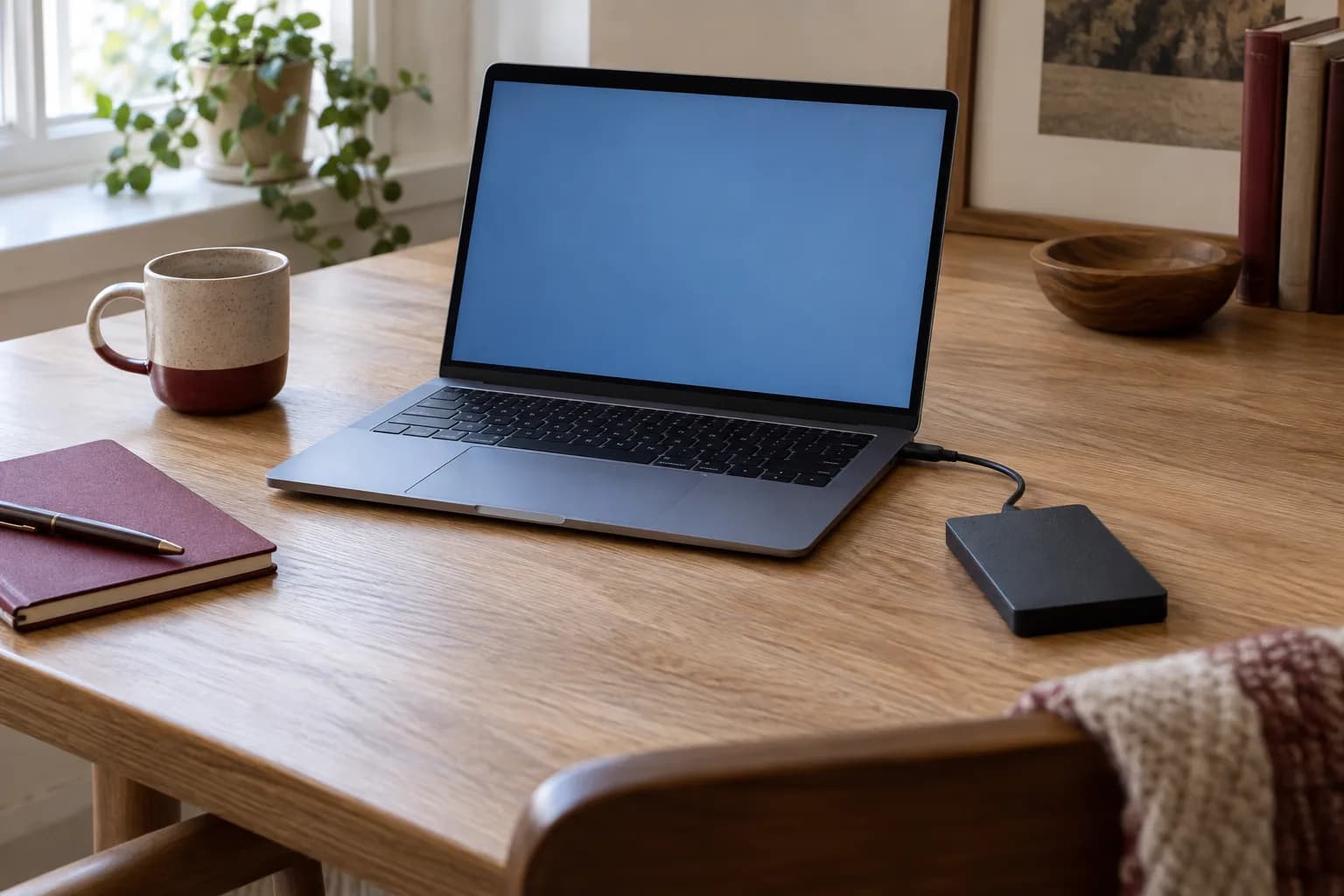
External storage can serve a different need, such as a project library or archive used at a desk. Think through cable access, portability, and how you will reconnect it consistently. Do not treat a drive containing the only copy of your photos as a backup simply because it is outside the computer.
Write one sentence describing the intended result: “Keep the present system drive, add supported storage for video projects, and include that folder in our backup.” That sentence is easier to quote and verify than “make the computer faster.” It also prevents a helper from assuming that replacing the system disk is authorized when you only wanted more space.
Make migration a separate line of work
There are several possible approaches to moving to a new system drive, and the appropriate choice depends on the machine, its condition, and supported tools. Ask whether the proposal involves cloning, a fresh operating-system installation, or transferring selected data after setup. Do not assume these approaches produce identical results.
Describe what must remain usable: named applications, local mail archives, photo libraries, project templates, browser profiles, and other household accounts. Software licenses and sign-ins may require owner participation. A copied Documents folder does not demonstrate that a specialized application can open its working database.
Use our backup preparation guide before storage work. It covers verifying sample files and protecting recovery information. Keep passwords and encryption recovery keys out of booking messages. If the computer belongs to an employer or school, obtain the organization's instructions before requesting changes to its storage or data.
A practical example: the crowded family laptop
Imagine a laptop shared by two adults. It starts normally, but its storage is crowded with photographs and a growing project folder. The initial request is a larger SSD. Before ordering, the household checks the exact model, records both user accounts, and confirms which photo application holds the original images.
Their scope becomes more specific: confirm supported replacement storage, preserve both accounts' agreed data, reinstall or migrate the named applications using supported methods, and test the shared printer afterward. The owners remain available for account sign-ins. The original drive stays with them until the agreed checks are complete.
This example makes an important distinction visible. The hardware task might be straightforward while the preparation is incomplete. If nobody knows where the photo originals are stored, discovering that location is a prerequisite. It should not become a surprise after a drive has already been changed.
Compare proposals by what they include
Ask for the exact part, who supplies it, and who handles a return if it proves unsuitable before installation. Confirm whether the proposal includes required accessories, migration, software setup, and testing. Avoid comparing a hardware-only quote with a quote that includes recreating the entire working environment.
Discuss what happens if the source drive behaves unpredictably. Ordinary upgrade assistance does not establish a data-recovery capability. If files are inaccessible or the drive appears to be failing, stop treating the appointment as routine migration and ask for an appropriate assessment before repeated copying or repair attempts.
Agree on the old drive's disposition. Keeping it, repurposing it, securely erasing it, and disposing of it are separate decisions. Do not authorize erasure through an ambiguous phrase such as “clean everything up.” Retaining it temporarily also requires a private, labeled storage location under the owner's control.
Define acceptance in everyday terms
A computer that starts is not the whole result. Before the visit, choose representative checks that reflect your actual use:
- Confirm the installed drive matches the agreed model and capacity class.
- Start the computer normally and verify the intended user accounts.
- Open a recent document and an older item from the migrated collection.
- Open the important application and its actual project or library.
- Check an agreed peripheral, such as the household printer.
- Confirm where new files will be saved and whether the backup includes them.
- Record any incomplete migration or software task before discussing cleanup.
These checks are a practical handoff, not a promise that every file has been exhaustively inspected. If a sample fails, preserve the source and backup while the problem is investigated. Avoid deleting similar-looking folders simply to remove clutter during the final walkthrough.
What to send with an estimate request
Provide the exact computer model, operating system, current storage concern, and the result you want. Mention whether the computer starts, whether you have verified a backup, and whether the device is personally owned. A screenshot of storage usage can help if it excludes private filenames and account details.
You can request an estimate for an appropriate computer upgrade and setup scope. Include migration and completion checks explicitly so the proposal covers the working computer you need at the end, as well as the hardware going inside it.