Quick answer
Start a remote support session only with a helper whose identity you have independently confirmed, for a task you understand. Close unrelated documents, keep account credentials under your control, and stay present while access is active. Before the session ends, review what changed and confirm that the connection has closed.
Remote help is useful for some settings, software, and account-navigation problems. It cannot physically reseat a cable, clean a cooling system, or inspect damaged hardware. Agree on what can realistically be done remotely before granting access. A legitimate tool does not make every person using it trustworthy.
Verify the appointment through a channel you already trust
Use the support contact you chose, a known company website, or your existing appointment record. Do not treat a pop-up, an unexpected text, or an inbound call as proof that your computer needs help. If the contact claims to represent an employer or service provider, verify it separately with that organization.
The FTC describes common support scams involving alarming messages, impersonated companies, and requests for remote access. It advises contacting a company through details you know are genuine rather than using the contact information in a suspicious message. Read its tech support scam guidance if the request is unexpected or urgent.
For a scheduled appointment, confirm the helper's name, the task, and the intended support tool. You should be able to explain why the session is happening before installing anything. If the person cannot connect their request to the appointment you made, stop and verify rather than proceeding because they sound confident.
Understand screen sharing and control as separate permissions
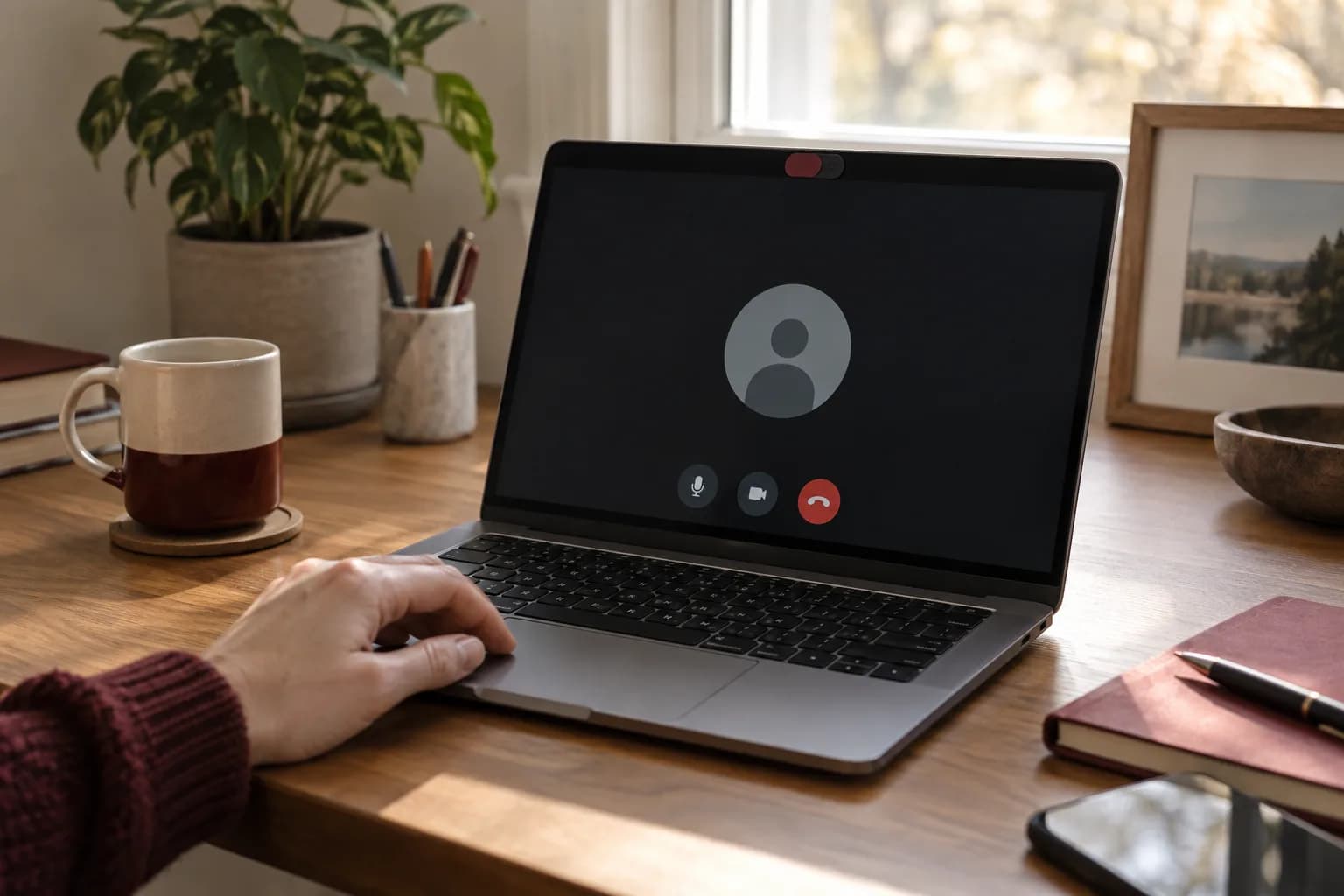
Sharing a screen allows another person to see what is displayed. Remote control may also let that person operate the computer. Some tools offer additional capabilities, such as file transfer or persistent access. Review the actual permissions in the tool being used; do not assume that every support application behaves the same way.
Microsoft's Quick Assist instructions distinguish permission to share a screen from permission for the helper to take control. They also describe how to cancel control and leave a session. Learn the equivalent controls before starting any remote tool, so ending access is not something you must ask the helper to do for you.
For a simple question, a limited screen share or guided conversation may be enough. Full control should match the task, not be a default requirement for every issue. If the helper needs a different permission later, ask what action requires it before approving the change.
Prepare a workspace that exposes only what is needed
Close email, banking pages, private photographs, personal messaging, and unrelated documents. Clear sensitive notifications where your operating system allows it. If the tool supports sharing a single application, consider whether that is sufficient for the task. Do not rely on a minimized window to guarantee that its contents can never be seen during full control.
Move files only when necessary; do not perform a hurried cleanup that deletes important material. The goal is to keep the support session focused. A desktop containing private file names may deserve attention even if those files will not be opened.
If the computer belongs to your employer, check the organization's support rules first. Customer records, regulated information, and confidential business data may need an approved support provider and process. A household troubleshooting appointment should not quietly become access to a company's systems.
Keep passwords and recovery methods with the owner
A helper can describe where to sign in without keeping your password. When you need to enter a credential, pause sharing or use the tool's supported privacy controls as appropriate, then enter it yourself. Confirm what the helper can still see before assuming an input is private.
Do not send passwords, backup codes, recovery keys, or a photograph of a password manager in an appointment message. If a problem involves an account you cannot access, use the account provider's legitimate recovery process. Remote assistance is not a reason to bypass ownership checks or use another person's credentials.
Be equally careful with multifactor prompts. Approve only the sign-in you intended, after checking the account and action. A request to read out a code or accept an unexplained prompt deserves a pause. The helper should be able to explain the step in terms you understand and allow you to complete it directly.
Agree on the troubleshooting scope before changes begin
Describe the symptom and the result you want. For example: “The printer is available from my phone but not this laptop; I want to print from this application.” That scope is easier to review than “make the computer faster,” which can lead to unrelated changes.
Ask the helper to explain significant actions before taking them. Installing a driver, changing a network setting, removing an application, or resetting a device can have effects beyond the current symptom. If the proposed step could remove data or interrupt access, confirm the backup and recovery plan first.
Keep a brief change note during the visit. It might record the installed software name, the setting adjusted, and the test that followed. A useful support session produces an understandable result, not just a computer that behaves differently after a series of unexplained clicks.
Use sample data for the actual test
A harmless sample document can prove that printing works. A test meeting can prove that the camera and microphone are selected correctly. A copied sample file can verify a save location without exposing a client's real records. These small choices keep troubleshooting useful while reducing unnecessary access.
When the issue requires a private file, consider whether the owner can perform the test and describe the result. The helper may need only an error message or an application setting, not the document's contents. If specialized data is involved, follow the organization's approved process instead of improvising.
For an intermittent problem, record exactly what was tested and what remains uncertain. One successful attempt may be encouraging without proving a permanent fix. A clear follow-up plan is more honest than treating every temporary improvement as a completed repair.
Watch for a task changing into something else
A printer problem should not require an unrelated bank login. A software update should not require purchasing gift cards. A remote helper should not ask you to hide the session from your employer or family, or pressure you to act before you can verify the request. If the work moves outside the agreed purpose, stop and reassess.
The FTC warns that support scammers may use payment demands and fabricated security problems to pressure people. If that happens, end the connection and use a known contact channel to decide what to do next. Do not try to negotiate while the other person still controls the device.
If you believe someone obtained unauthorized access, seek help through a trusted provider using another device if necessary. Follow the affected account providers' recovery guidance and contact the relevant financial institution directly if financial information or transactions were involved. Preserve the messages and appointment details for reporting rather than deleting the record in frustration.
Close the session with an explicit handover
Ask what changed, what was tested, and whether anything remains unfinished. Confirm whether any installed remote tool will remain and whether it permits unattended access. An ongoing management arrangement needs a separate, understood agreement; it should not be a hidden side effect of a one-time support visit.
End the session using your own controls. Close the support application and review any next steps with the helper after access has stopped. Do not remove employer-managed software independently; coordinate with the authorized IT administrator.
Save the support note without secrets. A good summary might say that the printer driver was replaced with the official model-specific version and a two-sided sample printed successfully. It should not include account passwords, recovery codes, or copies of unrelated private files.
A short checklist for the next appointment
Before connecting, confirm the known helper, appointment purpose, tool, and expected permissions. Close unrelated content and make sure you know how to stop access. During the visit, stay present, enter your own credentials, and ask about changes outside the agreed task. At the end, test the result yourself, close the session, and keep a brief record.
If remote help cannot inspect the suspected problem, an on-site visit may be more appropriate. A loose connector, a noisy fan, or a physical device setup often needs someone at the desk. Our new-computer guide and printer troubleshooting guide can help you describe the task before booking.
Ask for the right kind of computer help
When you request an estimate, describe the device, the symptom, and whether you need help at home or in a small office. Do not attach passwords or sensitive documents. Taskburgh can discuss the appropriate scope and whether an on-site task or another support route makes sense. For broader business security planning, NIST's Small Business Cybersecurity Corner offers resources beyond a single device-support appointment.