Quick answer
Repair makes sense when a specific fault can be addressed and the rest of the computer still suits your needs. An upgrade makes sense when a supported component change addresses an identified limitation. Replacement becomes more attractive when several limitations, support issues, or repair uncertainties accumulate. Age and a single repair price do not settle the decision on their own.
Start by defining the problem and protecting your files. Then compare complete options, including setup, migration, downtime, and the equipment you already use. A new machine that cannot run an essential application or connect to your workplace setup is not automatically the better outcome.
Describe one real task that is going wrong
“It is slow” is a starting point, not a diagnosis. Choose an example: the computer takes a long time to open a particular application, struggles during a video meeting, loses a printer connection, or becomes noisy while handling a project. Note when it began, whether it happens consistently, and what changed shortly before it started.
Separate the computer from the surrounding system. A slow website, an unreliable network, and an overloaded application can feel similar to a hardware problem. Buying a new computer before identifying the affected part of the workflow can leave the original frustration in place. Ask the assessment to explain what was observed and which possibilities remain uncertain.
Keep a short symptom record and avoid making several changes simultaneously before the visit. If you have already installed utilities, replaced parts, or reset settings, list them. Knowing the sequence helps the person assessing the machine distinguish the original issue from the effects of an attempted fix.
Protect the data before comparing hardware
Identify important files and verify a current backup before work that could change storage or software. A repair decision should not quietly become permission to erase a drive. If the machine no longer starts or the storage appears unreliable, say whether recovering the data is more important than restoring the computer quickly. That may require a different assessment route.
Do not assume a login password gives access to every encrypted drive or application. Confirm that you control the necessary recovery information through the appropriate private process. Our backup preparation guide explains how to record what is protected and what still needs attention without placing secrets into a request.
If the device belongs to an employer or contains managed business information, involve the organization's IT contact before authorizing changes. An outside helper should not bypass management controls, replace a managed operating system, or copy work data into a personal account merely to make the machine easier to service.
Distinguish a repair from an upgrade
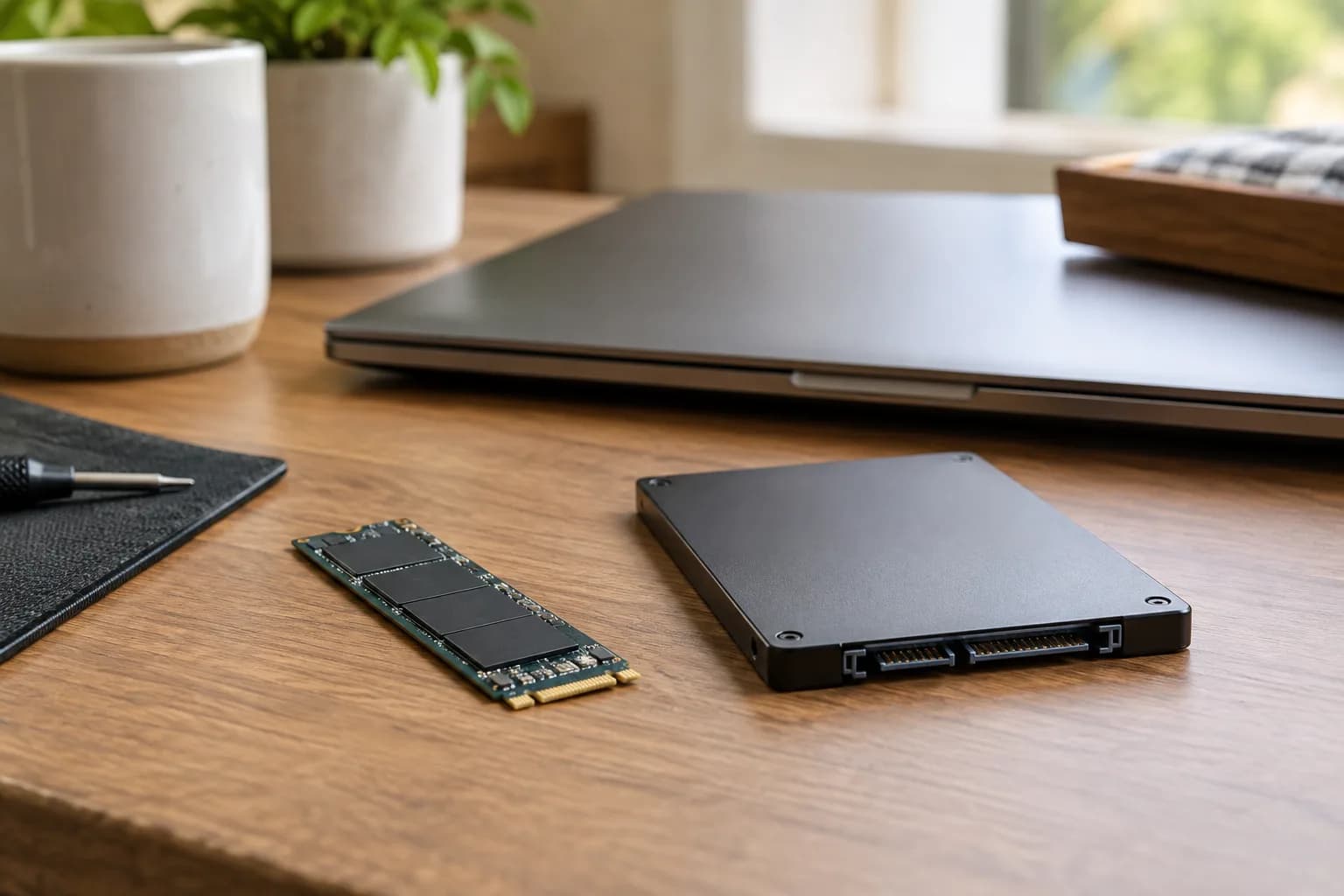
A repair addresses something that is not working as intended. An upgrade changes capability. Replacing a defective compatible component and installing a larger or faster component may overlap physically, but the justification and expectations are different. Ask the provider to name the problem each proposed change is intended to solve.
Dell's maintenance guidance includes maintenance and diagnostic tools as different parts of computer care. Treat a diagnostic result as evidence within an assessment, not an automatic shopping instruction. A passing short test does not prove that an intermittent problem is resolved, and cleaning is not the same as a complete hardware diagnosis.
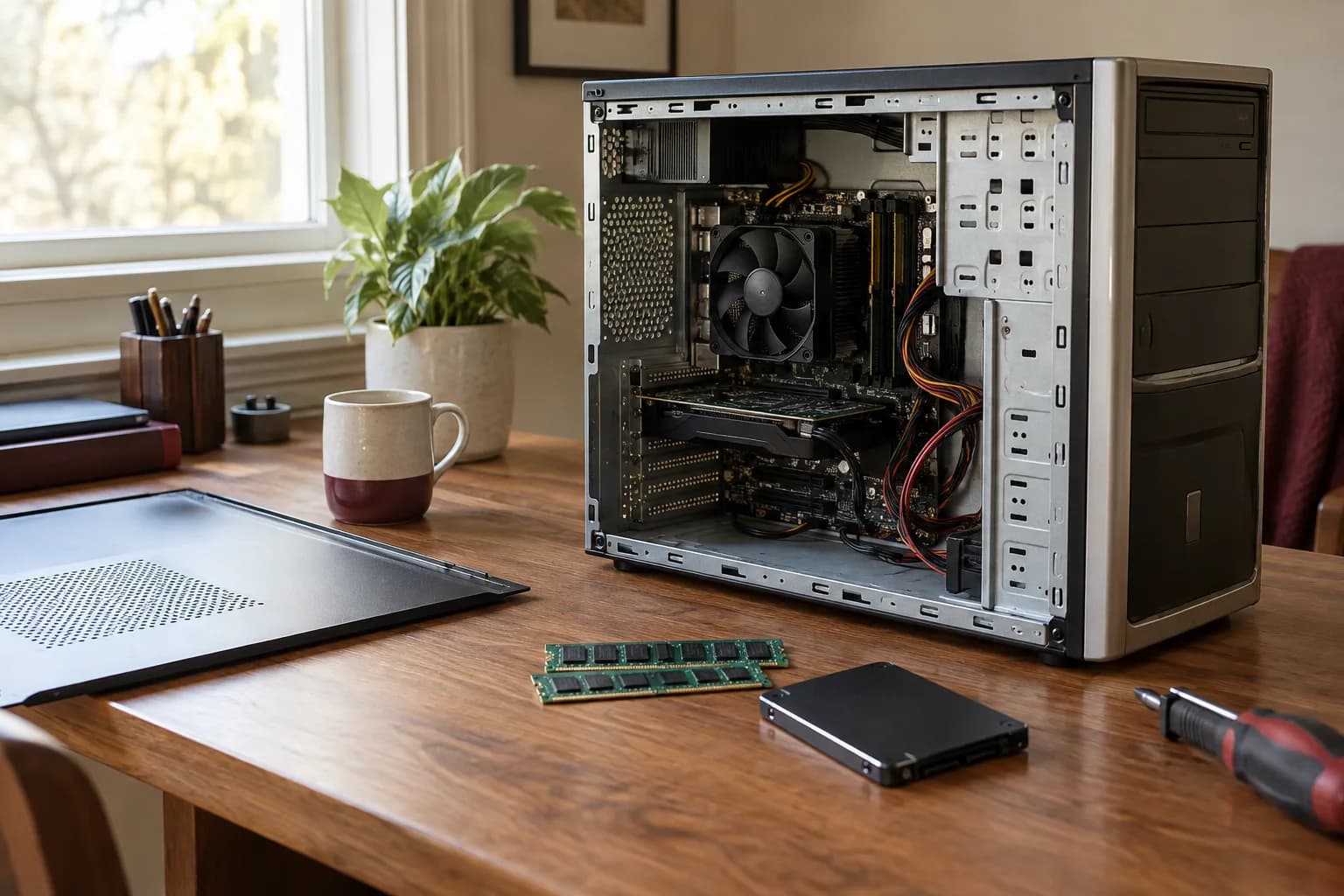
For a hypothetical desktop used mainly for documents, a supported targeted change may be enough if the assessment finds a clear limitation. For a laptop with several damaged components and a workflow it no longer supports, one repair might still leave the main need unmet. Neither conclusion should be reached from the computer's age alone.
Verify upgrade possibilities for the exact model
Do not assume that every laptop accepts more memory or that every storage device is replaceable in the same way. Find the exact model's service documentation, supported parts, and access requirements. Physical form, interface, firmware, power, cooling, and software support can all matter depending on the change.
Ask for the proposed part number and the evidence of compatibility before ordering. A component with a familiar connector or a larger advertised capacity is not sufficient proof. If the plan depends on a firmware update, identify who will perform it, why it is needed, and what preparation is required. Avoid an unreviewed sequence of changes that makes troubleshooting harder.
Also consider what the upgrade does not change. A better component may not solve a damaged hinge, a poor display, an inconvenient port arrangement, or a software support limitation. List the remaining compromises so a modest upgrade does not become the first payment in an open-ended attempt to turn the machine into something it cannot be.
Include supported software in the decision
Check the operating system and essential application requirements against the exact computer. Microsoft's Windows 11 specifications describe the baseline requirements and additional requirements for particular features. Use the vendor's current support information and compatibility process rather than assuming that a newer component makes an otherwise unsupported system suitable.
Application support matters too. List programs, peripherals, and subscriptions you rely on, including any older specialized software. Confirm license access and whether installers or account credentials are available. A replacement can require a different migration plan if an old application or accessory no longer has a supported path.
Do not treat bypassing a compatibility check as equivalent to having a supported setup. If the computer is used for business, dependable updates and a maintainable configuration may carry more weight than extending the life of a particular chassis. Explain that priority when requesting advice.
Compare complete options on one page
Write three columns: repair, upgrade, and replacement. Under each, record what will be delivered, what remains uncertain, and what additional work is needed. Include approved parts, labor, software, migration, accessories, and any repeat visit. Use actual estimates rather than a generic rule that every repair above a certain percentage is wasteful.
For replacement, remember the setup work. A new computer still needs your accounts, files, printer, displays, and other everyday tools configured. For repair, consider the period without the device and whether a replacement part is actually available. For an upgrade, identify what measurable everyday task should improve and how it will be checked.
Keep optional preferences separate. A lighter laptop, quieter setup, or better-looking desk arrangement can legitimately favor replacement, but say so. A transparent preference is more useful than inventing a technical necessity to justify a purchase you would enjoy anyway.
Decide the spending boundary before work expands
Agree on the first assessment and the point at which another decision is required. If a machine needs to be opened before the fault can be confirmed, ask what happens if the findings make repair unattractive. Can it be reassembled, what work has already been completed, and what information will you receive?
Identify who can approve parts or additional labor. Do not leave that decision to someone who is only providing access to the home. If you are unavailable, agree whether affected work should pause. An explicit boundary is particularly useful when a repair has uncertain parts availability or when more than one issue is present.
Avoid allowing a sequence of small purchases to replace the original comparison. If the first proposed change does not address the symptom, return to the evidence and the overall plan. Another part should have a reason, not merely be the next thing to try.
Check the outcome using your normal work
After a repair or upgrade, repeat the task that motivated it under reasonably similar conditions. Open the application, join the call, connect the printer, or work with a representative project. Record what improved and what did not. A clean desktop screen or a generic benchmark may not answer your actual question.
For a replacement, verify the agreed data migration before retiring the old machine. Check important folders, a few representative files, essential software, and the devices connected to the desk. Keep the old computer and backup until the agreed checks are complete and you have made a deliberate disposal decision.
Save the component details, service notes, and relevant receipts. They make a later warranty or maintenance question easier and reduce the chance that another person repeats a change without knowing it was already attempted.
FAQ
Is an old computer always worth replacing? No. Its condition, supported software, actual workload, and available repair or upgrade options matter more than age alone. Assess what you need it to do and what remains dependable.
Will adding memory fix every slow computer? No. A proposed memory change should be supported by the workload and exact model. It does not address every storage, network, software, or physical fault.
Should I reset the computer before asking for help? Do not erase information or remove useful diagnostic context just to prepare for a visit. Protect the data and describe the symptoms first. A reset should be a deliberate, approved step with clear expectations.
Ask for an assessment before buying
Send the exact model, one or two representative symptoms, essential applications, and your priorities when you request an estimate. Taskburgh can help compare suitable computer services, a targeted maintenance or setup task, and the points where specialist repair or replacement is the more appropriate route.