Quick answer
Do not buy a router based on one frozen meeting. First identify whether the problem is the microphone, camera, computer, local Wi-Fi, internet connection, or meeting service. Compare the same task in a few controlled conditions and write down what changes. A fast download result alone does not establish that a call will remain stable.
Start with the least disruptive checks: selected camera and microphone, a short test call, a comparison near the router, and a wired connection if available. Save network resets and equipment purchases until you have evidence pointing toward them.
Describe the failure precisely
“Bad internet” can mean several things. Does your picture freeze for other people while you still see them clearly? Does audio stop in both directions? Does the camera disappear entirely? Does the call disconnect, or does the computer itself become unresponsive? Those details help distinguish different causes.
Ask another participant what they observed, and record the time. Note whether the problem appears in every meeting or only with one service. If it occurs on both a personal and a work account, that is useful context; if it appears only when a particular business tool is open, record that too.
Use a private test meeting with a trusted person rather than making disruptive experiments during a client call. Choose a harmless document for screen sharing. You need representative activity, not a recording of confidential work, to compare the setup.
Check camera and audio selection first
The meeting application may be using a different device than you expect. A dock can expose several audio outputs, a monitor can become the selected speaker, and a headset may not be the active microphone. Look at the application settings and the operating system's permissions before changing the network.
Google Meet's pre-meeting guidance describes checking appearance and audio before joining. Use the equivalent self-check in your meeting application. Confirm that the camera image, microphone activity, and playback come from the devices you intended.
If the problem is echo, consider the room setup. Two computers joined to the same meeting with open speakers can create a different issue from a weak connection. Test one audio path at a time. Google's audio troubleshooting guidance provides application-specific checks when sound is missing or permissions are incorrect.
Compare the same computer in two locations
Use the same laptop, application, and test activity at your normal desk and closer to the main router. Pause unrelated large transfers for the comparison, then note whether the symptom changes. Avoid changing the headset, meeting service, and location simultaneously, because a successful result would not tell you which change mattered.
If the call improves near the router but fails at the desk, local coverage deserves attention. If it fails in both places, there is less reason to assume that an extra wireless node will solve it. A problem that occurs only on one computer may involve that computer rather than the whole household network.
Signal bars provide context, but they are not the acceptance test. Use the call itself, with the camera and screen sharing you normally need. Your goal is to make the working location reliable, not simply to produce a better-looking signal indicator.
Use Ethernet as a comparison when practical
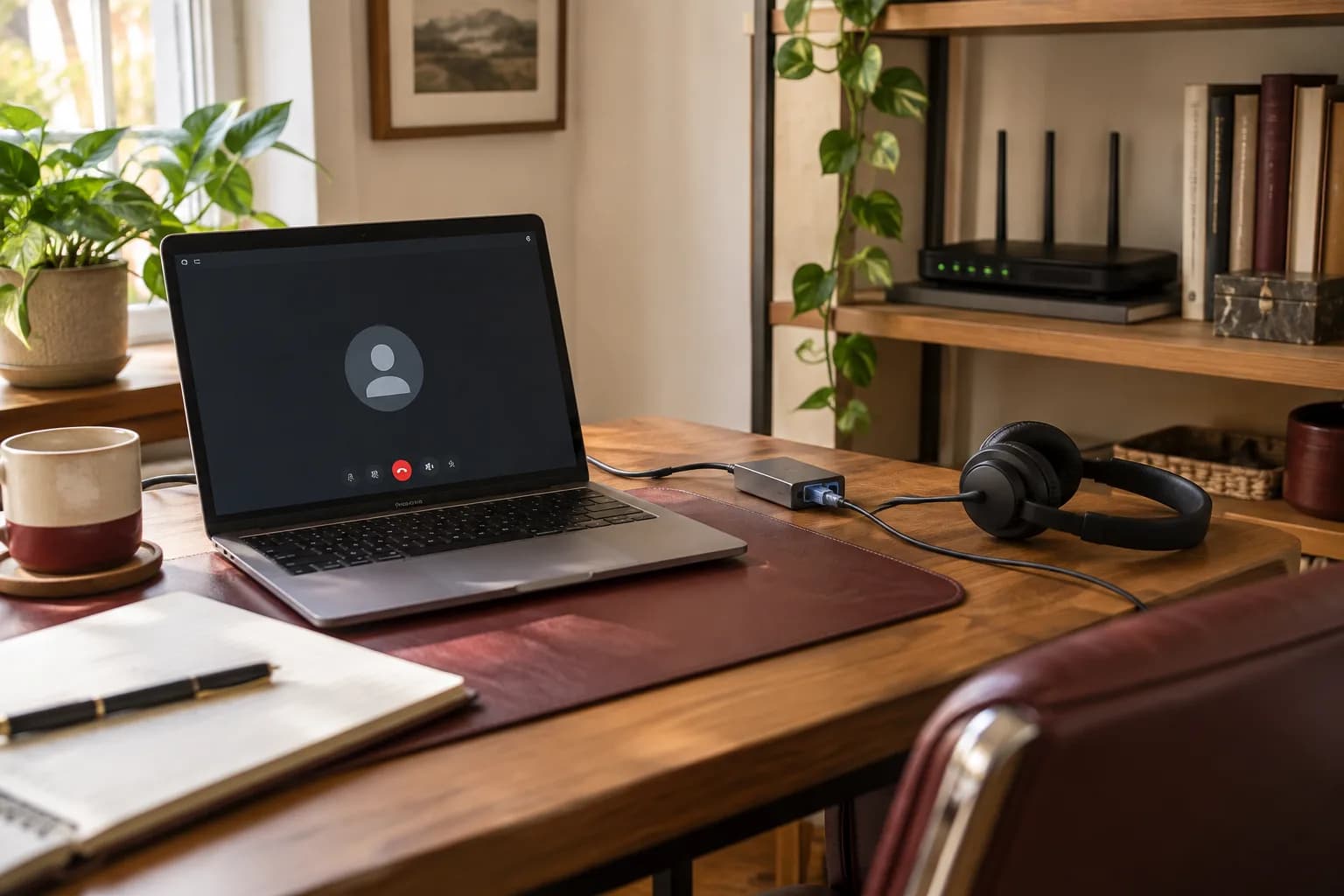
A temporary wired connection can help separate local Wi-Fi from other causes. Use a suitable adapter if the computer has no Ethernet port, and keep the cable out of walking routes. Confirm the computer is actually using the wired connection during the test; plugging in a cable without checking the active network can produce a misleading comparison.
Google's meeting-quality guidance recommends a wired comparison where available and observing bandwidth and latency over time. It also notes that application and device issues can affect meeting quality. These are reasons to test the complete setup rather than using an internet-plan number as a diagnosis.
If wired calls remain stable while the desk's Wi-Fi does not, investigate wireless placement and coverage. If both fail, record the shared symptom before escalating to the internet provider, IT administrator, or application support. A clean comparison gives the next person a much better starting point.
Separate capacity from consistency
A speed test is a snapshot taken under particular conditions. Record download, upload, and latency results where available, along with the location and time. Run comparisons thoughtfully rather than repeatedly testing while everyone else is trying to work. Your outgoing camera and screen share use the connection differently from watching a downloaded video.
Notice whether the trouble coincides with cloud backups, large file transfers, game downloads, or several simultaneous calls. That observation does not automatically justify disabling backups or buying a faster plan. It helps identify what to test next, such as scheduling a nonurgent transfer outside a meeting window.
Avoid treating one generic bandwidth threshold as a guarantee. Requirements vary with the application, meeting features, and how many people share the connection. Check the current requirements for the service you use, then test the real workload from the actual desk.
Check the computer's workload and accessories
A computer handling a meeting, virtual background, many browser tabs, and several other applications may struggle even with a healthy network. Close nonessential applications for one controlled comparison and use a simpler meeting configuration. Keep the machine on a firm surface with its ventilation unobstructed.
If disconnecting a dock or an accessory changes the problem, record that result rather than assuming the accessory is definitively defective. The relevant factor could be a cable, driver, power arrangement, or compatibility issue. Test one change at a time and use the device maker's supported updates.
Do not install random “speed booster” tools or disable security software to make a meeting work. An employer-managed computer should follow the organization's support process. If a VPN or security policy may be involved, ask the administrator to evaluate it; do not bypass a required control just because a consumer support article mentions testing without it.
Decide whether Wi-Fi changes are justified
When the evidence points to room coverage, look at placement before node count. A router inside a cabinet or behind several substantial walls may not reach the desk well. A wireless extender placed in the dead zone can also receive too little useful signal to help. The connection between network devices matters as well as the connection to your laptop.
Consider the floor plan and cable options. A single dedicated desk may benefit from a wired connection, while a household moving between several floors may need a broader coverage plan. Buying the largest mesh kit is not a substitute for locating the nodes well.
Our mesh versus extender guide explains the tradeoffs. Keep the old network configuration documented and make changes in a planned window. Printers, cameras, and smart-home devices may need attention after a network change, even when the laptop reconnects immediately.
Build a fallback for an important meeting
Prepare a simple fallback before a time-sensitive call: an alternate approved device, a quieter tested location, or a phone audio option offered by the meeting organizer. Know how to rejoin and whom to message if you drop. Confirm any mobile data limitations before relying on a hotspot.
The fallback should preserve the meeting's privacy and access rules. Do not move a confidential work session to an unapproved account or public computer just to stay connected. For a business meeting, ask the organization which alternatives are acceptable.
A fallback is a continuity plan, not evidence that the underlying issue is fixed. Keep the original symptom and test notes so troubleshooting can continue after the meeting, when changes will not interrupt important work.
Keep a small test log
A useful record fits in a few lines: date and time, computer, location, wired or wireless connection, meeting application, camera or headset, and result. Include what the other participant observed. Note whether other household users were active and whether the same problem appeared on a second device.
For example, “Stable by Ethernet at the desk; freezes over Wi-Fi at the same desk; stable over Wi-Fi near the router” points toward a different investigation from “Both connections fail only on this laptop.” These are illustrative comparisons, not a diagnosis of your network.
Stop once the evidence supports the next action. Endless speed tests add little when you have already isolated a repeatable device-specific error or a provider outage. Share the concise log with the person responsible for that part of the system.
Confirm the fix during normal use
Repeat the original comparison after a change, then try an ordinary call from the working desk. Keep the same headset and application long enough to know whether the symptom has actually stopped. If the problem appeared only during simultaneous household use, include that condition in a planned test rather than checking an empty network at midnight.
Write down which change remained in place. A new node position, a replaced cable, and an application update are different outcomes with different follow-up questions. If the symptom returns, that short record helps the next person continue the investigation without repeating every experiment.
Get the desk and network working together
When you request an estimate, include the room layout, computer and router models, the symptom, and the comparisons you have already tried. Do not send account passwords or private meeting recordings. Taskburgh can discuss home-office device setup, network placement, and practical troubleshooting within the agreed scope. If your employer manages the computer or network, include that fact so any work can be coordinated with the authorized IT team.