Quick answer
If your home has more than one floor, thick plaster or brick walls, or several rooms where the Wi-Fi signal drops out, a mesh system is usually the better fix — mesh nodes work together as one coordinated network instead of adding a second, separate one. A single extender can be enough for one small dead zone in a smaller home, but it comes with real trade-offs you should know about before you buy.
Why the same dead zone gets different fixes
Every router broadcasts on radio frequencies that lose strength as they travel and as they pass through building materials. That's the root cause of a dead zone: the router simply isn't loud enough by the time its signal reaches the back bedroom or the basement.
There are two common ways to fix that: add a device that repeats the signal (an extender), or add devices that form one larger, coordinated network with the router (mesh).
How an extender works
A Wi-Fi extender sits partway between your router and the dead zone. It picks up the router's existing signal and rebroadcasts it further into the house. That's useful, but it has two practical downsides worth knowing before you buy:
- Network names and roaming depend on the model. Some extenders use a separate name; others reuse the existing name or participate in a coordinated system. A shared name alone does not guarantee seamless roaming.
- Speed at the far end is often lower. The extender has to relay traffic back and forth to the router over Wi-Fi, and it can only pass along as good a signal as it receives — so the extended area tends to feel slower than the rooms near the router.
How mesh works
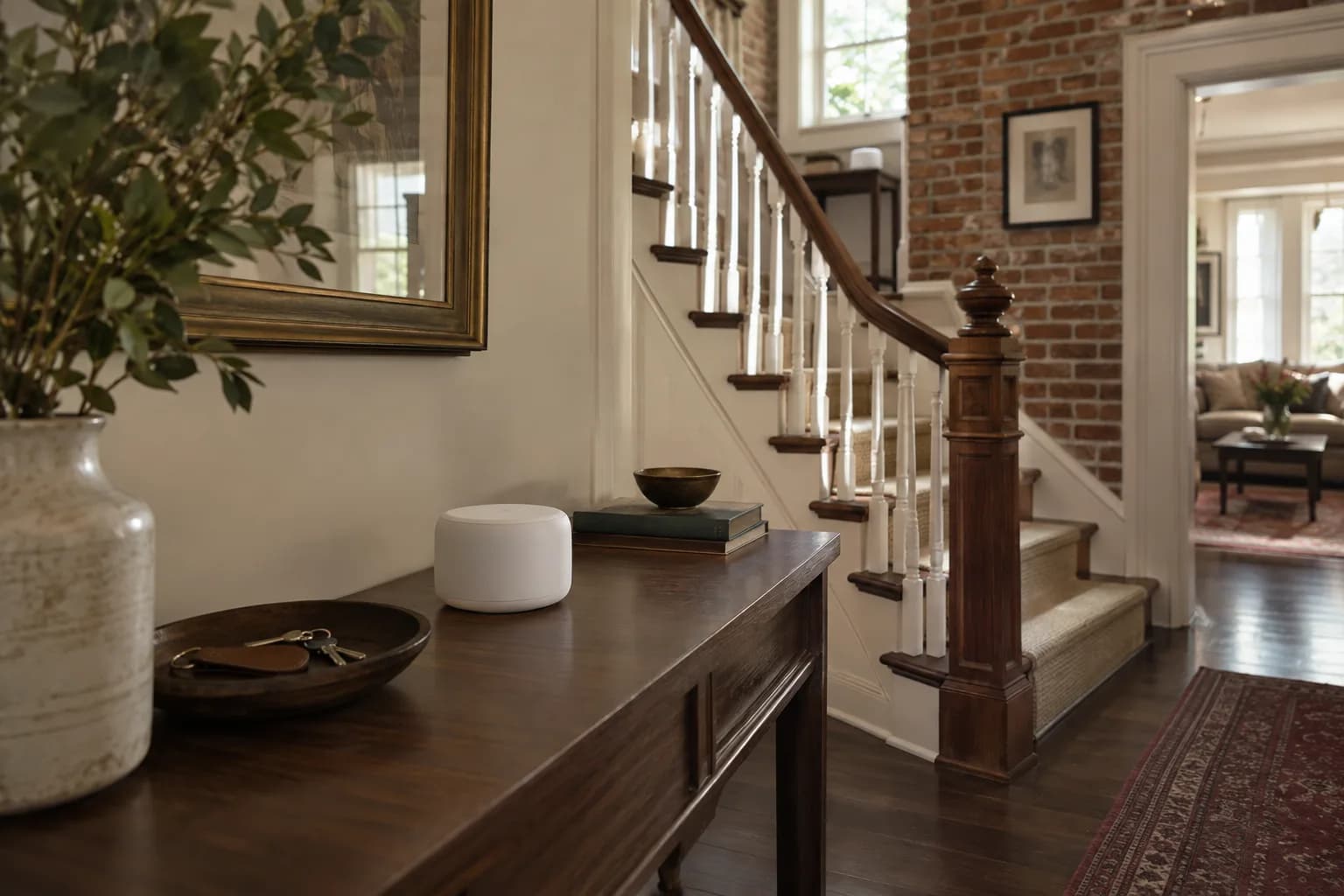
A mesh system replaces your single router with several matching units — one "node" connects to your modem, and the others are placed around the home. The Wi-Fi Alliance describes EasyMesh as a coordinated network of multiple access points that can help steer devices and adapt the network. Brand-specific mesh kits aim for a similar experience. In plain terms: you keep one network name throughout the house, and the system steers your phone or laptop toward a better node as you move from the living room to the upstairs office, instead of you switching networks by hand.
The link between nodes is called the backhaul. Depending on the system, it runs over Wi-Fi (some kits reserve a separate radio for it) or over an Ethernet cable. A wired or dedicated backhaul can help preserve capacity, but results depend on the equipment, placement, and building.
Why multi-story and older homes are harder on Wi-Fi
A few things make dead zones more common in taller or older houses:
- Every wall and floor is another obstacle. Intel's wireless documentation lists "physical objects or walls reducing signal strength" among the factors that affect Wi-Fi performance. Taller homes put more floors between the router and the far rooms, and older homes often have more interior walls, plaster, and brick in the signal's path than an open modern layout.
- Router placement is often dictated by where the cable or fiber line enters the house — frequently a basement or a corner — which is usually the worst possible spot to cover the rest of the home evenly.
- 2.4 GHz and 5 GHz bands behave differently. Intel describes 2.4 GHz as the longer-range option, while higher bands can offer more capacity under suitable conditions. A dead zone two floors up is often a range problem more than a speed problem, which is part of why simply moving the router rarely fixes a whole house on its own.
- Interference adds up. Intel also notes the greater concentration of legacy devices on 2.4 GHz. Neighbors' networks add to that, which matters in denser Pittsburgh neighborhoods where rowhouses share walls.
Extender vs. mesh: side by side
| Wi-Fi extender | Mesh system | |
|---|---|---|
| Setup | One device, simple, fast | Two or more matching nodes, slightly more planning |
| Network name | Often a separate network to switch to | One network name throughout the home |
| Roaming | Varies by extender and client | Coordinated assistance; client behavior still matters |
| Speed over distance | Can drop noticeably at the extended point | More consistent, especially with a wired backhaul |
| Best for | One small dead zone, smaller home, tight budget | Multi-story homes, larger footprints, several weak spots |
| Expandability | Limited — usually just one extra device | Add more nodes later as needed |
A practical way to decide
- Map your dead zones first. Walk the house with your phone's Wi-Fi settings open and note where the signal bars drop or the connection stalls. One weak corner points toward an extender; multiple weak spots on different floors point toward mesh.
- Count your floors and major walls. More than two floors, or walls of plaster, brick, or masonry between the router and the dead zone, favor mesh.
- Think about how many devices actually roam. If a phone, laptop, or tablet moves between the affected rooms during the day, mesh's automatic hand-off is worth more than it sounds — no manually switching networks mid-call.
- Check whether you can run a wired backhaul. If an Ethernet cable can reach between two node locations (through a closet or along a baseboard), and your mesh system supports wired backhaul, that link is typically faster and steadier than a wireless one between nodes.
- Match node count to square footage and layout, not just floor count. A long, narrow rowhouse layout often needs a differently placed node than an open, square floor plan of the same size.
Where to place mesh nodes (or an extender)
- Keep the main router and the first mesh node within a couple of rooms of each other — some wireless backhaul range is lost with every wall between them.
- Avoid placing nodes inside cabinets, behind TVs, or in basements unless that's the dead zone you're fixing — enclosed spots block signal in all directions, not just where you need it.
- Aim for line-of-sight or open doorways between nodes where possible; hallways and stairwells are usually good spots in multi-story homes.
- For an extender, the classic rule still applies: place it roughly halfway between the router and the dead zone, in a spot that still gets a solid signal from the router itself — a strong signal from the extender does not fix a weak or congested connection back to the router.
Test the problem before replacing the network
Separate an internet-service problem from a room-coverage problem. Use the same laptop or phone for each comparison, with large downloads paused and the same test or call in progress. Record what happens near the main router, at the normal desk, and on a wired connection if one is available. Bars on a phone describe only part of the connection; an actual call or file transfer is a better check of the activity you care about.
If the wired connection also fails, adding wireless nodes is unlikely to fix the root cause. If the wired test works and the back bedroom fails, placement or local wireless coverage deserves attention. If only one device has trouble everywhere, investigate that device before changing equipment used successfully by everyone else. Our video-call troubleshooting guide walks through that comparison in more detail.
Keep the network change reversible
Before setup, note which box is the internet provider's equipment, which one supplies Wi-Fi, and where each cable goes. Photograph cable labels without sharing the Wi-Fi password publicly. Record the current network name and the devices that depend on it, especially printers, cameras, and smart-home controllers.
A replacement router using a new network name may require every device to be reconnected. Reusing the old name and password can reduce that work, but compatibility and security settings still matter. Do not assume that copying a name transfers the old router's settings or guarantees every device will join. Keep the original equipment until the new network has passed the household's practical tests.
For an office managed by an employer or IT provider, get their approval before replacing routers, changing address settings, or enabling a second router. Two devices both acting as routers can create a network arrangement that complicates local discovery and remote access. The right operating mode depends on the provider's gateway and the mesh manufacturer's instructions.
What a completed setup should demonstrate
Test at the places where the network actually earns its keep: a video call at the desk, a print from the usual laptop, a stream in the den, and the smart-home app from the normal phone. Walk between floors during a call only if roaming matters to you. The client device still participates in deciding when to roam; mesh is not a promise that every handoff will be invisible.
Finally, label the main node and leave a simple restart order with the household. Keep recovery details in the owner's password manager, not on a public note beside the router. The result should be understandable after the installer leaves, including which equipment to contact the internet provider about.
FAQ
Can I mix mesh nodes from different brands? Some routers and mesh systems are Wi-Fi EasyMesh certified, with interoperability as a goal. Many consumer kits, however, are still designed to work only within the same product line — check the specific product's documentation before assuming mix-and-match will work.
Will a mesh system fix slow internet, not just dead zones? No. Mesh and extenders both distribute the Wi-Fi signal you already have; neither can make your internet plan itself faster. If every room already gets a strong signal but pages still load slowly, the bottleneck is more likely your internet plan or your modem.
Do I need to replace my existing router to add mesh? Most mesh systems are designed to replace your router's Wi-Fi entirely, with your existing modem or gateway feeding into the main mesh node. Some internet providers' combo modem-routers can also be set to "bridge mode" so a mesh system takes over Wi-Fi duties — worth checking with your provider first.
How many mesh nodes does a typical multi-story home need? It depends more on wall material, layout, and square footage than on floor count alone, which is why walking the house and mapping dead zones first (above) matters more than guessing from a box's advertised square-footage rating.
Getting it set up right
Buying the right hardware is half the job — placement, running any backhaul cable neatly, and mounting nodes where they're both effective and out of the way is the other half. If you'd rather not spend a Saturday testing node positions room by room, our team can walk the space, place and configure the system, and tidy the cable runs so it looks intentional, not improvised. See our smart home services for what's included, or request an estimate with a few photos of your layout and we'll suggest an approach before the visit.