Quick answer
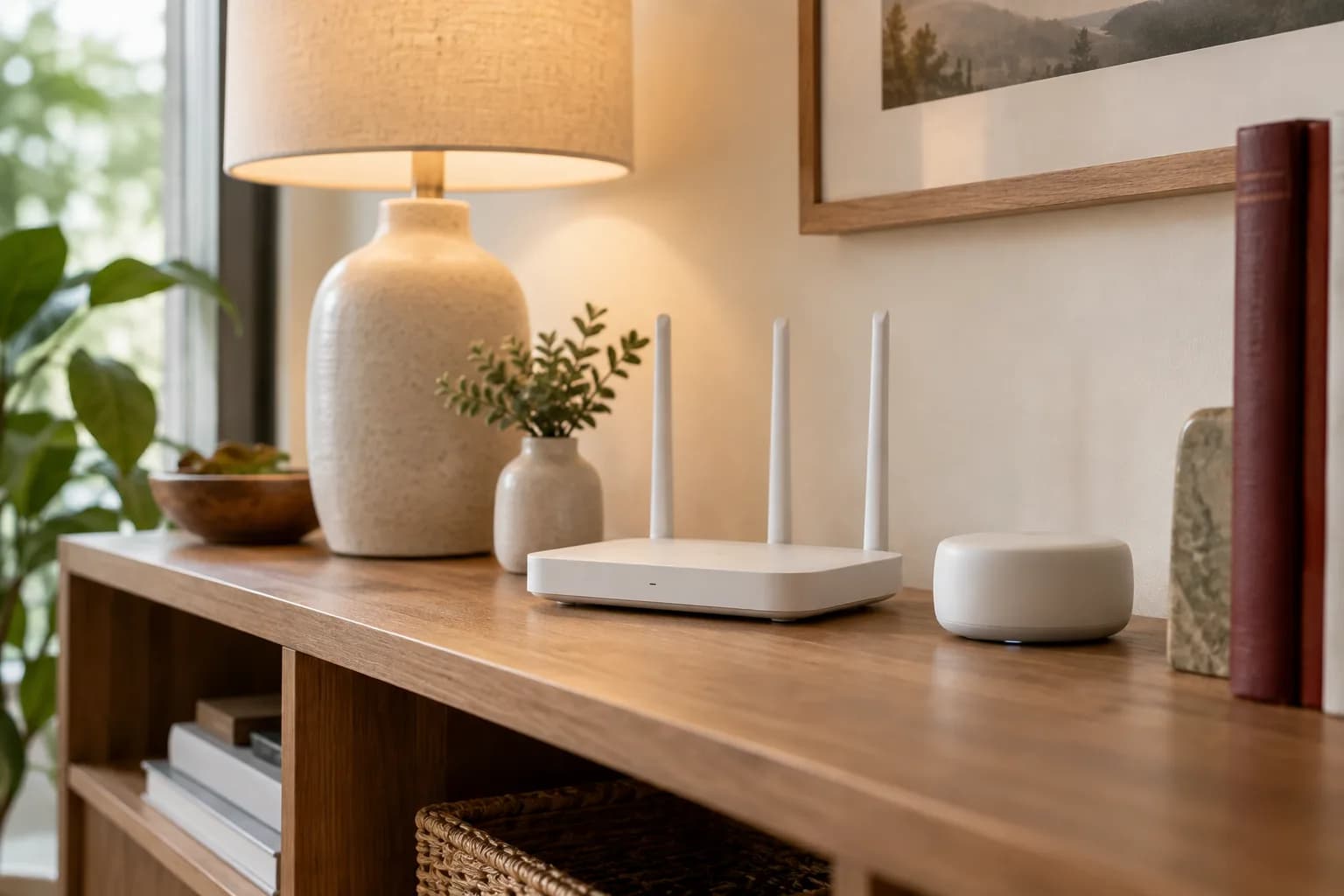
A guest Wi-Fi network can give visitors internet access while keeping your main Wi-Fi password private. Whether it also separates devices from one another depends on the router and its settings. Before moving smart devices onto a guest network, map which devices need to communicate, check the manufacturer's supported setup, and test the everyday functions you care about.
This is an access-planning question. It is different from improving weak coverage, which we cover in our mesh Wi-Fi and extender guide. A stronger signal does not decide whether a guest should reach your printer, and a separate network name does not prove that every device is isolated.
Start with three kinds of access
Write down who needs internet access, who needs to control a home device, and who needs to administer the router. A visiting friend might need the first only. A household member might need the first two. The person maintaining the network needs an appropriate owner-controlled way to perform the third.
The FTC's home Wi-Fi guidance distinguishes the network password from the router administration password, recommends modern Wi-Fi encryption and updates, and describes guest networks as a way to avoid sharing the primary login. Those are useful starting points. Give someone router administration only when that role is actually required.
Make a small device list using everyday names: office laptop, kitchen speaker, living-room television, hallway camera, and printer. Note who owns each device and who manages its account. You do not need to include passwords in this list. Ownership matters because a technically connected device can still be unusable if nobody in the household controls its account.
Understand what “guest” means on your router
Router interfaces use similar labels for different combinations of restrictions. Look for the documentation for the exact model and current software. Settings may separately govern access to the main local network and communication among guests.
For example, TP-Link's guest-network instructions describe separate options for guests to see each other and to access the local network. That example demonstrates why the network's name alone is insufficient. It does not mean every router presents those switches, or that changing them is the right solution for your home.
Read each setting in relation to a specific need. “Can the guest use the internet?” is different from “Can this phone find the printer?” Document what you intend to allow before changing anything. Keep a note of the original settings so a troubleshooting change can be reversed deliberately.
Smart devices have dependencies
Some devices are controlled through a manufacturer's online account; others also rely on local communication with a phone, hub, speaker, or other device. Consult each product's setup requirements. Do not assume a successful sign-in proves every control path works.
A practical device map might say that the living-room television needs to receive content from household phones, the office printer must serve two laptops, and a guest tablet only needs internet access. These descriptions are more useful than dividing equipment solely into “smart” and “not smart.” They expose the relationships that an isolation setting might interrupt.
Also check the device's supported wireless bands and security modes in its manual. Avoid weakening the whole network simply because one product does not join on the first attempt. First verify its setup procedure, current software, credentials, and compatibility. If a supported arrangement is unclear, ask the manufacturer before purchasing replacement networking equipment.
Do not use visitor access as an account handoff
Joining guest Wi-Fi should not require giving a visitor ownership of the home, camera, or speaker account. Keep device invitations and network access separate. Use product-supported household or guest permissions when a person needs continuing control, and review precisely what those permissions allow.
The same distinction applies to a setup visit. A helper may need temporary access to configure an agreed item, but the owner should remain in control of the account and recovery information. Enter sensitive credentials yourself when practical. Do not place passwords in a room photograph, estimate request, or label attached to the router.
For remote computer assistance, see our privacy checklist. Giving a person remote access to a computer is a separate permission from letting their phone use your internet connection. Treat each grant of access as its own decision with an end point.
Work through one example before reorganizing everything
Imagine a household with a shared printer, a television used for casting, two work laptops, and visiting relatives. The intended outcome is simple: visitors can browse online, household laptops can print, and household phones can control the television. Nobody has asked visitors to access local files or administer devices.
The household first records the existing arrangement and tests those functions. It then enables a supported guest setup and checks a visitor's device. Next it tests printing and casting from the household devices without changing their network assignment. This establishes a working baseline.
Only after that would it consider relocating a particular smart device. It checks that device's instructions and tests the affected control path after one change. Moving every device at once makes it harder to determine which setting broke a familiar function. A modest, understandable arrangement is easier to maintain than an elaborate one nobody can explain.
Use a short acceptance checklist
Agree on completion checks before a network visit. An internet speed test alone does not cover them. Depending on your household, include the following:
- A guest device joins the intended network and opens an ordinary website.
- A household computer prints an actual document to the intended printer.
- A phone performs the desired television or speaker action.
- A named smart device responds using its supported control method.
- The router remains manageable by its owner through the intended process.
- Settings match the agreed access boundaries in the model's documentation.
- Temporary service access is removed when it is no longer needed.
A device failing to appear in a discovery list is not a complete security audit. Conversely, one successful print does not prove every network boundary is correct. Describe the checks honestly as functional confirmation of the agreed setup, with any unresolved restrictions recorded.
Plan for the next password change
Write down which network each household device uses and where its supported reconnection instructions can be found. Keep actual passwords in an appropriate private store. This preparation helps when a router is replaced or a guest password changes.
Before changing a network name or password, identify devices that someone depends on while you are away. Schedule the work when the owner can test those functions afterward. Do not change shared building, employer, or landlord-managed networking without the responsible person's authorization.
Avoid permanent guest access for a one-time need unless you consciously choose it. Review old invitations and temporary access after the visit. If an access schedule or automatic expiration is supported, check its actual behavior rather than assuming the label means it already worked.
Ask for a setup with a clear result
Send the router model, a brief device list, and the functions you want to preserve when you request an estimate. Explain any shared or managed network constraints and identify who can approve settings changes. Taskburgh can discuss an appropriate home device and network setup scope based on those details.
The useful outcome is a network the household understands: visitors can do what they need, everyday devices still work, and the owner knows how access is granted and removed. Document that result in plain language so the next change does not start from guesswork.