Quick answer
A good custom PC starts with a written description of what you want to do, the displays and peripherals you use, the space available, and the priorities you will trade against one another. The parts list comes next. Compatibility has to be checked across the exact components, and the build is not complete simply because it powers on. Assembly, software setup, data migration, and a practical handoff are separate pieces of the project.
Taskburgh can help plan and assemble a suitable custom desktop. The useful first conversation is about your applications, expectations, and existing equipment, not a promise that one fashionable component list fits everyone.
Describe the work in concrete terms
Name the applications you use and the kinds of projects they handle. “Video editing” can mean occasional family clips or a demanding daily workflow. “Gaming” needs context about the games, display resolution, and experience you want. “Office work” may include several large spreadsheets, video meetings, and multiple displays running together. These distinctions make the parts discussion more accurate.
Record what is frustrating about the current computer. Is an application slow to open, does a specific project run out of room, or is the setup simply too loud for the desk? Separate measured limitations from preferences. A smaller case, a quieter appearance, and a particular color scheme are valid goals, but they should not silently replace performance or maintainability priorities.
If you cannot identify the bottleneck, make assessment part of the plan before buying. A custom build might be appropriate, but so might a targeted upgrade or an ordinary ready-made system. Use the option that fits the work rather than assuming custom assembly must always be the answer.
Agree on the complete project boundary
A parts budget is not the whole project. Decide whether the plan includes a monitor, keyboard, operating-system license, assembly, installation of approved software, migration of files, and setup at the final desk. Keep optional cosmetic accessories separate so you can see what they add.
Identify who orders the components and who handles returns if something arrives wrong or faulty. Save exact product names and revisions where relevant; a retailer's substitution can change compatibility even when the listing title looks similar. Decide whether purchases should wait until the full list is reviewed rather than ordering bargains one at a time and hoping the system comes together.
Discuss timing without promising that every shipment or replacement will be available. If the computer is needed for work, keep a fallback plan until the new system is tested and your important tasks run successfully. Retiring the old machine on delivery day can make an ordinary setup issue unnecessarily disruptive.
Check compatibility as a chain
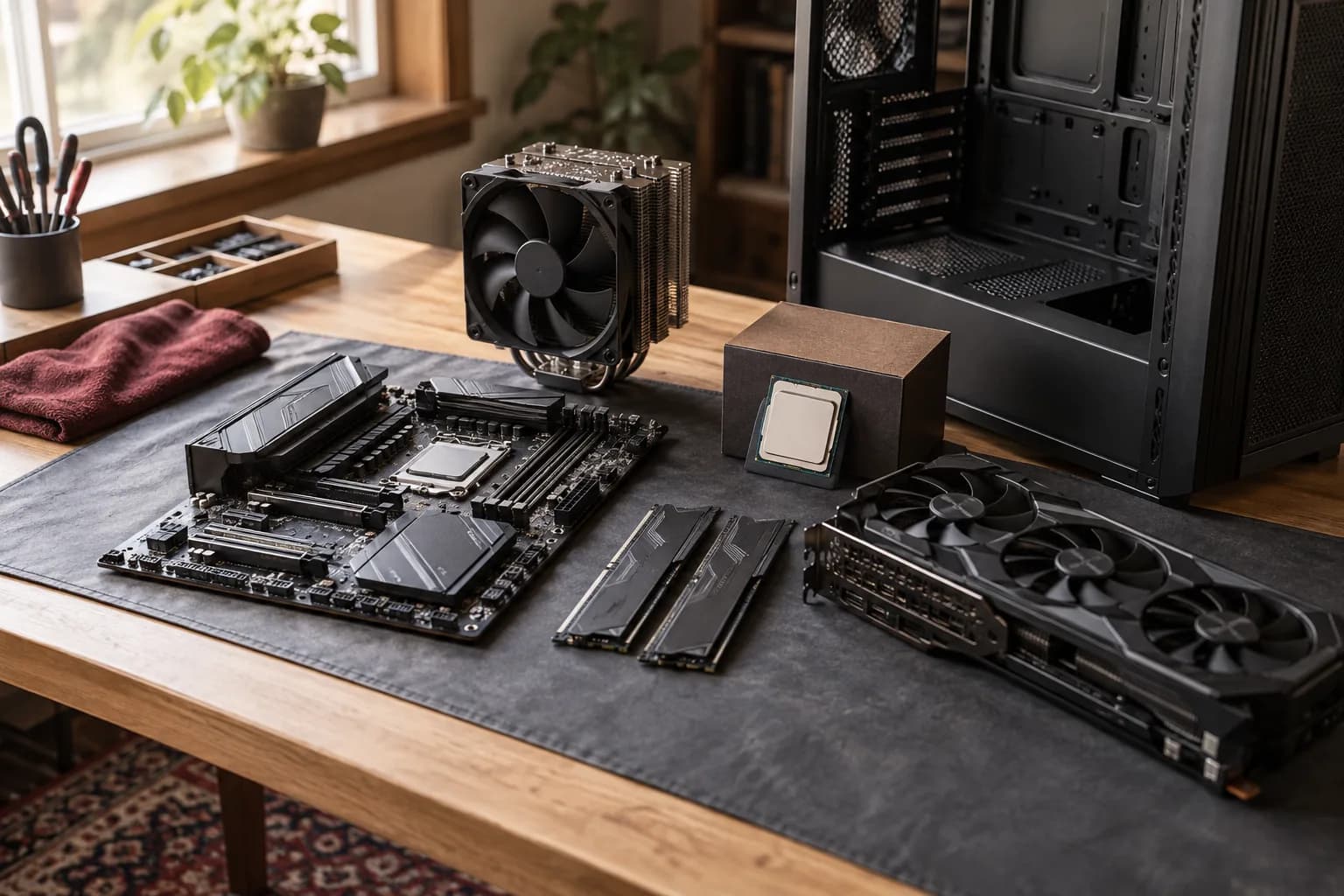
Intel's build guide identifies the major components and emphasizes matching the processor and motherboard while accounting for case, cooling, memory, storage, and power. Use a guide as a starting map, then verify the exact current product manuals and support lists. A broad guide cannot approve a particular shopping cart.
For each component, record the requirement it places on another. Does the motherboard support the chosen processor with the firmware it ships with? Is the memory type and configuration supported? Does the case accommodate the chosen cooler and graphics card in the proposed arrangement? Are the required connectors available without an improvised adapter plan? These questions should have documented answers before assembly.
Compatibility tools can help organize a list, but they do not replace checking physical details and manufacturer notes. A system may have individually compatible parts yet present an awkward cable route, blocked access, or a conflict when a particular cooler and memory kit are used together.
Think about the room around the computer
Measure where the case will live, including the space needed for connections and maintenance access. Consider where you will sit relative to the computer and where cables lead to displays and peripherals. Avoid planning around a photograph of the case alone. The final location can be less accommodating than an empty assembly bench.
Describe noise expectations in ordinary terms. Is the computer next to a microphone, in a shared bedroom, or under a desk in a separate office? Instead of promising silence, ask how the proposed cooling and component choices relate to the workload and location. A compact appearance can involve different compromises from a larger, easier-to-access system.
Include practical preferences such as reachable ports, readable controls, and whether decorative lighting should be absent or adjustable. These details affect daily satisfaction and can often be resolved before purchase. Adding them after a build is complete may require replacing an otherwise functional part.
Plan software and accounts before first startup
List the operating system and essential applications, then verify their current hardware and licensing requirements. Microsoft's Windows 11 specifications provide the baseline requirements and note that particular features have additional needs. Meeting a minimum is not evidence that every demanding application will perform the way you expect.
Keep account ownership with the person or organization that owns the computer. Decide who will sign in, where licenses are recorded, and which software is approved for installation. Do not include passwords or recovery information in a public parts list or ordinary service message. Employer-managed accounts and software should follow the organization's IT process.
If files are moving from another machine, agree on the folders and application data involved. Copying a Documents folder is not the same as moving every program, setting, or business workflow. The backup-before-service guide can help you identify what needs to be protected and verified before migration starts.
Use a build and handoff checklist
The assembly record should identify the installed components and note any approved substitution. Keep boxes and purchase records until you know the system is functioning and the return decisions are settled. Retain useful spare brackets, cables, and instructions with labels explaining which component they belong to.
A practical handoff should cover the tasks you agreed to verify. That can include normal startup, the intended display arrangement, network access, audio, relevant ports, and representative applications. Ask what testing was performed and what it does not establish. A brief successful test is useful evidence, but it is not a guarantee that every possible workload or future update will be problem-free.
For a hypothetical design workstation, the owner might open a representative project and confirm the connected displays and peripherals. For a gaming system, the agreed check might involve a particular game and settings the owner plans to use. Choose meaningful tests rather than a decorative screenshot of the desktop.
Decide how future changes will be evaluated
“Upgradeable” is useful only when attached to a plausible next step. Ask what could reasonably be changed later and which choices constrain that change. Do not pay extra for vague future-proofing without knowing whether it serves your likely needs. Technology, software requirements, and parts availability will change.
Keep a simple component record with model names, purchase dates, warranty information, and the final connection layout. If the system later needs more storage or different graphics, that record makes an assessment faster. Review power, cooling, physical space, and software support again before a new component is purchased.
Maintenance is also part of ownership. Ask how filters or other user-serviceable parts are accessed according to the case instructions, and where not to reach or open. Our computer cleaning guide explains why inspection and a device-specific scope are more useful than automatic annual part replacements.
Avoid expensive assumptions
Do not reuse an old component solely because it fits physically. Its condition, documentation, compatibility, and role in the new system still need assessment. Likewise, a large advertised number on one component does not establish balanced performance across the whole build. Ask which requirement each expensive choice satisfies.
A visually matched set of components may be appealing, but appearance should be a transparent preference. Decide where you are happy to spend for that preference and where you want value directed toward daily work. This keeps the project from growing through small unreviewed upgrades that do not solve a real problem.
If the proposed list cannot meet all priorities, rank them. A clear tradeoff between size, cost, noise expectations, and performance is better than pretending there is no compromise. The final list should be understandable enough that you know why each major part was chosen.
FAQ
Is a custom PC always cheaper than a prebuilt computer? No. Compare the complete scope, support arrangement, software, assembly, and the specific capabilities you need. A custom build offers choices; it does not automatically guarantee the lowest total cost.
Can I buy the parts first and book assembly later? You can ask, but reviewing the complete list before purchase reduces the chance of missing or incompatible components. Send exact model numbers and mention any parts already opened or used.
Can you transfer everything from my old computer? Define “everything” first. Files, applications, accounts, settings, and licenses require different checks. Keep the old machine and a verified backup until the agreed migration has been checked.
Start with the brief
When you request an estimate, include your applications, existing equipment, preferred case size, appearance preferences, and the tasks you want the finished computer to handle. A clear brief lets us discuss planning, suitable computer help, assembly, and setup as a coherent project rather than a collection of unconnected purchases.