Quick answer
Computer cleaning is worthwhile when dust and debris interfere with the cooling path or the machine needs careful physical maintenance. Replacing thermal paste is a separate, model-specific decision involving the cooling assembly. A noisy fan does not by itself prove that paste has failed, and fresh paste is not a universal cure for a slow computer. A good service starts with the symptoms and exact machine, agrees on the work, and checks the result under comparable conditions.
Taskburgh can help with computer cleaning and thermal-paste work where the device and scope are suitable. The first step is to identify what you own and what is happening, not to promise that every laptop can be opened and serviced in the same way.
Describe the change you noticed
Write down when the behavior began and what you are doing when it happens. Does the fan become loud during a video call, while gaming, immediately after startup, or even when the computer appears idle? Does the machine slow down, shut off, or simply sound different? Mention recent software changes, a new location, and any previous repair.
The same description can have several explanations. A desktop moved into a tight cabinet has a different context from a laptop that started making a mechanical noise after a fall. A computer handling a heavier workload may behave differently without being dirty or defective. The request should preserve these distinctions so cleaning is not sold as a diagnosis before the machine is assessed.
Provide the model or service identifier through the appropriate private request channel, plus a photo of the exterior and where the computer normally sits. Do not remove covers solely to take an interior photo. Keep passwords, documents, and confidential screen content out of the images.
What cleaning can reasonably address
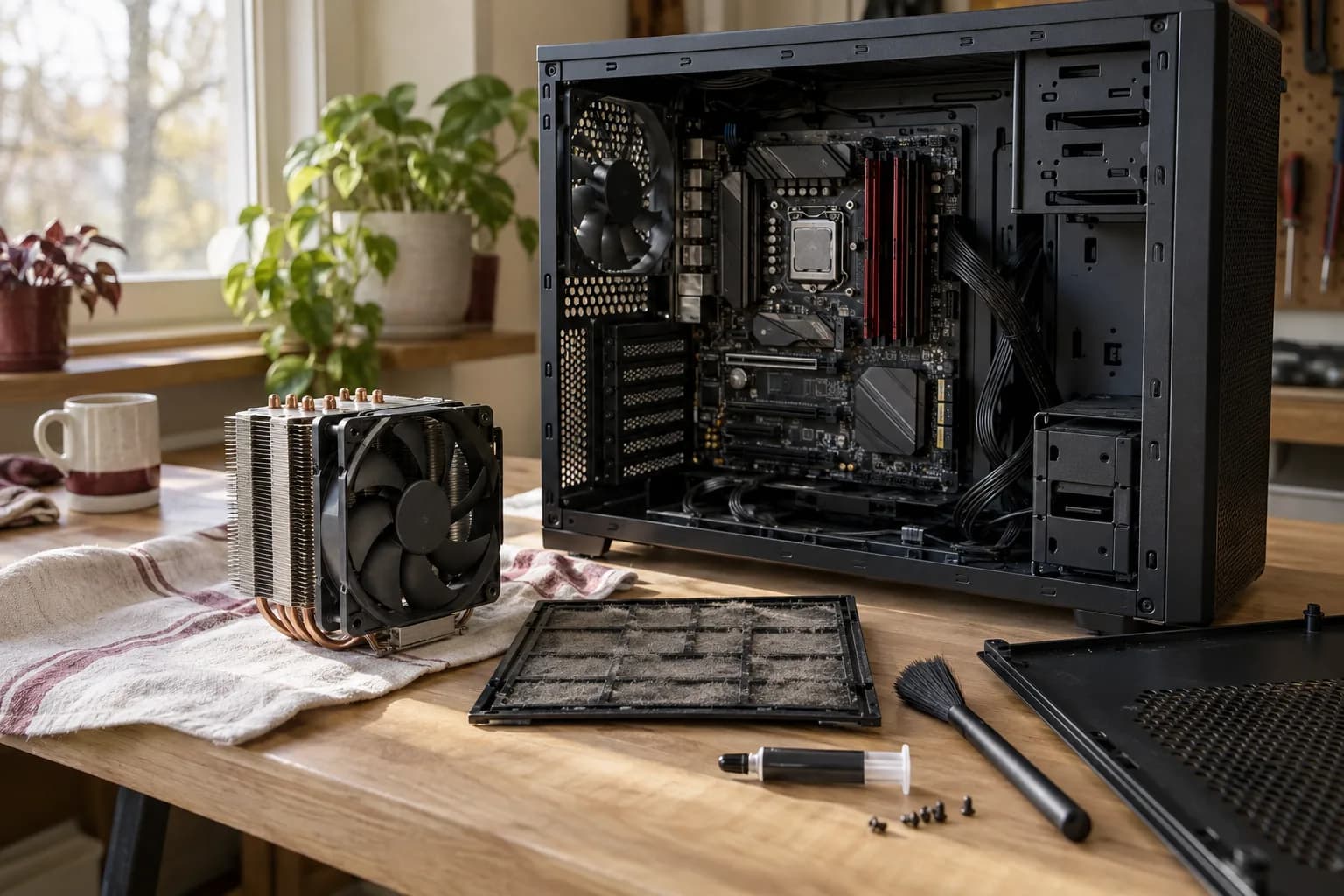
Dust at accessible vents, filters, and cooling components is a physical maintenance issue. Dell's maintenance guidance explains that blocked vents can restrict cooling and advises powering down and unplugging before cleaning. It also cautions against household vacuums or blowers and against spraying liquid directly onto equipment. Use the guidance for your exact device rather than assuming one cleaning product or opening method suits every computer.
A service scope should distinguish exterior cleaning, accessible filter cleaning, and internal work. Those are not interchangeable. A quick exterior wipe does not establish that an internal heat sink is clear. Equally, opening a machine is not automatically justified when the requested task is an ordinary surface clean.
Ask what can be assessed before disassembly and what depends on inspecting the device. A technician should be able to describe the limitation in ordinary language: for example, an internal component is inaccessible without additional disassembly, or a damaged fastener prevents the planned access.
Thermal paste is part of a cooling system
Thermal paste is the interface between appropriate contact surfaces in a processor cooling assembly. Intel's explanation describes its role in filling microscopic gaps, notes that some coolers arrive with paste already applied, and recommends fresh application after removing a cooler. Intel also directs readers to the relevant cooler and compound instructions. That is not a reason to schedule a paste replacement for every device at a fixed age.
Before approving the work, ask why it is recommended for your machine. Is the cooler already being removed for another necessary task? Are there symptoms and inspection findings that support investigating the thermal interface? Does the exact service documentation allow a suitable, repeatable process?
Do not assume desktop CPU guidance applies unchanged to a laptop or graphics card. The device's original materials and assembly requirements matter. If the work calls for specialized materials, unfamiliar construction, or a repair beyond the agreed scope, the right outcome may be a referral or a revised assessment rather than an improvised substitution.
What a clear service plan looks like
A useful plan identifies the device, the reported symptom, the approved maintenance, and the checks after reassembly. It should also state what is excluded. Cleaning is not automatically a malware investigation, operating-system reinstall, fan replacement, liquid-damage repair, or data-recovery service.
For a hypothetical desktop that has visible dust and increased noise during its normal workload, the plan might begin with inspection and cleaning of the accessible cooling path, followed by a check of the same ordinary task. Thermal-paste work would be a separate decision if the findings support it. For a laptop with a damaged enclosure or unknown prior repair, the first visit might instead establish whether safe servicing is practical.
Discuss how newly discovered damage will be handled. Ask the team to pause and explain the options before replacing components or expanding the work. If you are not available during the visit, identify the person who can approve a change or agree that the affected work will stop until you respond.
Prepare the computer and the workspace
Back up important files before maintenance. Physical cleaning is not intended to erase data, but a service visit is a poor time to discover that the only copy of an important document is on the machine being opened. Our backup preparation guide explains what to verify and how to keep recovery information under your control.
Save open work and make sure you can perform any necessary owner sign-in. Keep your charger and relevant peripherals available if they are part of the symptom. Provide a stable, clear work area with enough access around the equipment. Let the team know about unusual cabling, a difficult location, or a device that cannot be moved easily before the appointment.
Do not apply cleaners, lubricants, or new thermal material in advance to “help.” That can obscure the original condition and introduce a second problem. If you already attempted something, describe it honestly and retain the product information. It is more useful to know what happened than to make the machine appear untouched.
Compare the result fairly
A before-and-after check should use a relevant, reasonably similar workload and note meaningful differences in conditions. A quiet computer immediately after startup is not directly comparable with the same machine in the middle of a demanding task. Ask which observations were made and which were not possible during the visit.
Do not expect a promised temperature reduction or performance percentage without a defined measurement method. The result may be a cleaner cooling path and confirmation of normal operation rather than a dramatic speed increase. If the original symptom remains, record it and discuss the next diagnostic step. Repeating maintenance blindly is not the same as finding the cause.
Useful completion notes identify what was cleaned, whether the cooling assembly was disturbed, which materials or parts were replaced if any, and what was checked afterward. Keep those notes with the device's purchase and repair history. They help a later technician avoid guessing about previous work.
Decide what needs a separate assessment
Stop ordinary use and seek appropriate help if the device shows a swollen battery, liquid damage, burning smell, or other concerning physical damage. Do not press an enclosure flat, puncture a battery, or open a power-supply unit as part of a home cleaning attempt. Tell the provider about these conditions before an appointment so the work can be routed appropriately.
A failed fan, recurring shutdown, or persistent performance problem may also require diagnosis beyond cleaning. Ask for evidence supporting the next proposed action and whether the manufacturer offers a repair route. Warranty status, device value, available parts, and your need for dependable daily use all belong in the decision.
If an upgrade is being suggested instead, connect it to an identified limitation. More memory will not repair a broken cooling component, and a new storage drive will not resolve every source of noise. See repair, upgrade, or replace for a structured way to compare those options.
FAQ
Should thermal paste be replaced every year? Do not use a universal annual schedule. Follow the device and material guidance and assess the actual condition. Removing a cooler and applying fresh paste is different from replacing it solely because another year passed.
Will cleaning make my computer faster? It may help when cooling restrictions contribute to the problem, but that has to be assessed. Software, storage, workload, and hardware faults can produce symptoms that cleaning does not address.
Can every laptop be serviced at home? No. Construction, condition, parts, and the required procedures determine what is practical. Share the exact model first; an honest scope may involve inspection, limited maintenance, or a different repair route.
Do I need to hand over my passwords? Do not put passwords or recovery keys in an ordinary request. Discuss the minimum access needed for agreed checks and sign in yourself where practical. Your account ownership and private files should remain under your control.
Ask for a device-specific estimate
Send the model, symptoms, photos of the normal setup, and any relevant repair history when you request an estimate. We can discuss suitable computer cleaning, what needs assessment first, and what result the visit is intended to verify before you commit to the work.